Windows 10 and 11 Recovery Procedure (G4842878)
The following information is for use if instructed by the support team to perform a full rebuild of the laptop, including reinstallation of the operating system.
- Contact your local IT support representative or IT department.
- Request a complete system rebuild, including the items below to make sure the device is restored to a fully supported configuration.
- Operating system reinstallation
- Device drivers
- Required supporting software
Windows 10 and 11 Recovery Procedure
Follow the steps below to recover your device using the Recovery Partition.
-
Prepare the Device
- Connect the laptop charger. The device must be plugged in before proceeding.
- Press the Power icon to turn on thedevice.
-
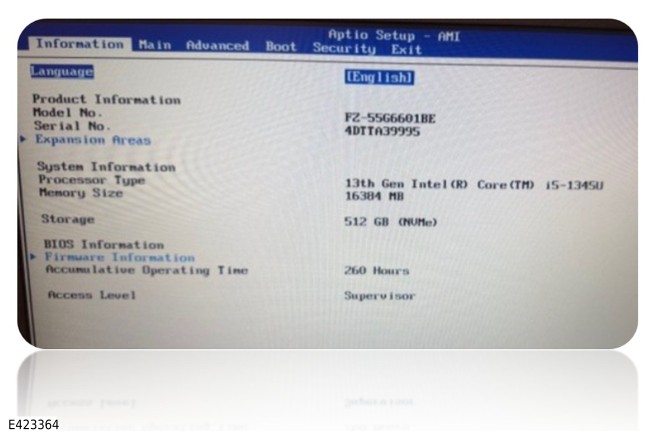
Enter BIOS. As soon as the manufacturers logo appears;
- Press the F2 key repeatedly, or Hold F2 until the blue/gray BIOS screen appears.
-
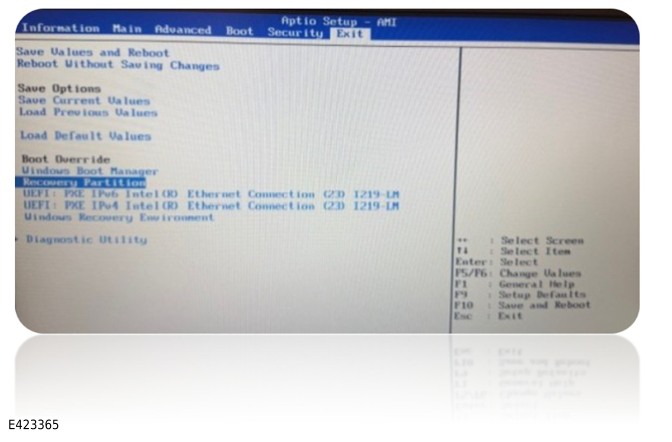
Start the recovery process. On the BIOS main screen:
- Press the Right Arrow key to move to the Exit tab.
- Press the Down Arrow key and select RECOVERY PARTITION.
- Press Enter.
- Important: Do NOT change any other BIOS settings. Unintended changes may cause system issues.
-
Recovery Environment
- Select RECOVERY.
- Windows 11 only: Read and Accept the EULA.
-
Select Recovery Type
- Select: RECOVER → ALL PARTITIONS
- Estimated Time: ~15 minutes After completion, the screen will show: FINISH RECOVERY PROCESS.
- Select Shutdown.
-
Restart
- Press the Power icon again to start the machine normally.
- Follow the information below to setup Windows;
-
(TOPIx Cloud Diagnostics and Workflow/Download and Installation).Refer to: How to Set-up a Laptop (out of the box)
-
- When windows has installed select the following link for information for how to install the diagnostic software.
-
(Standardised Navigation/6. Vehicle diagnostics).Refer to: 6.3 Integrated diagnostics
-